
A Google My Business Profile is essential if you want to be found on Google Maps and receive Google reviews.
Create a Google My Business Profile
- Login to a Google Account preferably one dedicated to your business, however it can be a personal Google account.
- Visit this page
- Follow the guides below
- Google Guide – Add or claim your Business Profile on Google.
- Google Guide – Verify your Business on Google
- Wrap up Web Guide – Help configuring your GMB profile
Verification
If you do not have a physical location this could be via email or telephone.
However, if you have a physical business location for example an Office, Commercial Unit, Building you rent or own or similar then you may need to verify that you are the owner/proprietor of that Business and that the Business resides at that location.
If you are a new business with a physical location or you have changed your physical location Google will NOT verify a new GMB Property for your business using email or telephone
It will most certainly select video as the verification method.
Video Verification
Google has a help page setting out what you need to do as a business to get your new GMB Property verified by them using video.
However, a few pointers…
The Correct Google Account
When recording the video make sure you are logged in with the same Google Account that is associated with the GMB profile you have created AND you are marked as the Primary Owner.
To find out if you are the primary owner
- Login to Google using the Google account associated with the GMB profile
- Click here to see your profile/s
- Click to open the profile you want to verify
- Click the 3 dots to the right
- Select’ Business Profile Settings’
- Click ‘People and access’
- You should see your Google Account listed and that you are marked as the ‘Primary Owner’
- If this is so, you are authorised to record and submit the verification video
- Close the screen and click the ‘Get verified’ button (make sure you read below to prepare for taking the video)
If a Google user who records the video is not marked as the Primary Owner of the GMB profile, the video will NOT be accepted.
Follow Google’s instructions
These are the tips Google will give you before you you start your video.
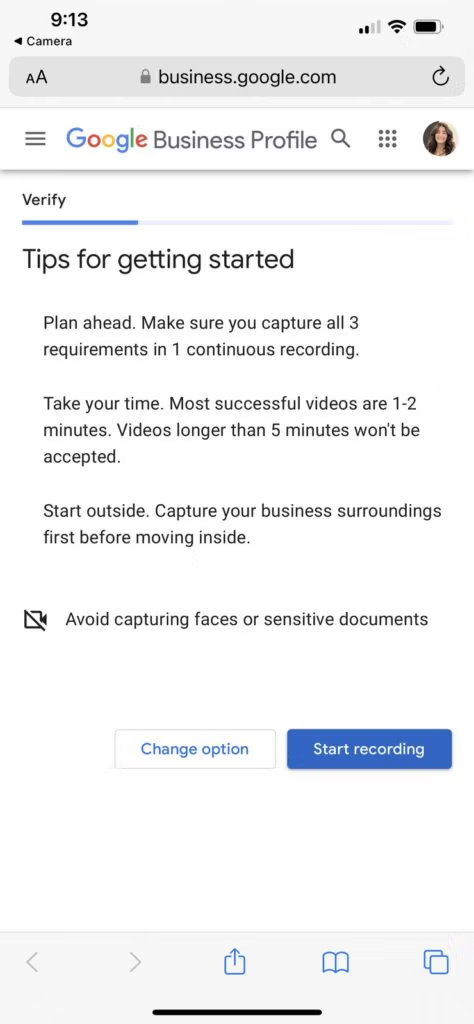
IMPORTANT! – “Make sure you capture all 3 requirements in 1 continuous recording”
- 1 -2 mins long, no longer than 5 mins
- Start outside and work your way in
- Avoid sensitive documents
Keep trying if it doesn’t work first time
Google will not tell you if verification has failed it will simply pop the ‘Get Verified’ link back up.
Keep trying until..
A. Google accept your video
B. They offer an alternative way to get verification
C. You end up contacting Google support
Watch this video….
In Summary
Before trying to verify using video, make sure you…
- are logged in using the Google Account associated with the Google My Business Profile
- are marked as the Primary Owner
- understand Google’s requirements for a successful verification video
During the video ensure you..
- record and submit a continuous video that is 1-2 mins long but no longer than 5 mins
- work your way from the outside of your premises to the inside
- satisfy the 3 basic requirements set out by Google (as described above)
After the video has been recorded and submitted you understand..
- you will have a wait at least 5 days, if not longer, for verification to be completed
- if its not correct you may have to record it again
- you may be given an alternative verification method if its not correct
- you can keep an eye on progress here (make sure you are logged in with the same Google account you used to record and submit the video)
